Third-Party Intelligence
Feature Description
Definition
After a third-party algorithm is loaded to a camera or edge device, the camera or edge device reports analysis metadata or alarm data in the correct format to the system, and the system stores the received data and provides northbound RESTful APIs for the application layer to subscribe to and query data.
Customer Benefits
The device can provide the integration and customization capabilities for algorithm vendors and application partners to adapt to a variety of industries.
Application Scenario
This feature applies to scenarios where third-party long-tail algorithms run on cameras and analysis results need to be stored in the IVS1800.
Requirements
NE |
Version Requirement |
License Requirement |
Function |
|---|---|---|---|
HWT-IVS1800-D/HWT-IVS1800-E |
11.1.0 and later versions |
N/A |
Receives and stores third-party algorithm analysis results reported by cameras. |
SDC |
9.0.0 and later versions |
N/A |
Loads third-party algorithms and reports analysis results. |
Application Limitations
The system stores the data reported by third-party algorithms but does not analyze the data. Data can be queried only by device ID and time range.
Feature Configuration (Based on Cameras)
Prerequisites
- The intelligent attribute of the camera has been set to Other intelligent functions.
For details about how to set intelligent attributes for a camera, see 5.
- Cameras have been configured to synchronize time with the HWT-IVS1800. This function is enabled by default. For details, see Configuring Time Synchronization from a Camera to the HWT-IVS1800.
Configuring a Linkage Policy for a Third-Party Algorithm
To view the configuration guide video, you can click  in the upper left corner on the Configuration tab page, and scan the QR code.
- Log in to the LDU as the admin user. (
 Logging In to the LDU)
 - Click
 in the upper left corner.
 - Choose Intelligent Applications > Camera Intelligence > Third-party Intelligence.
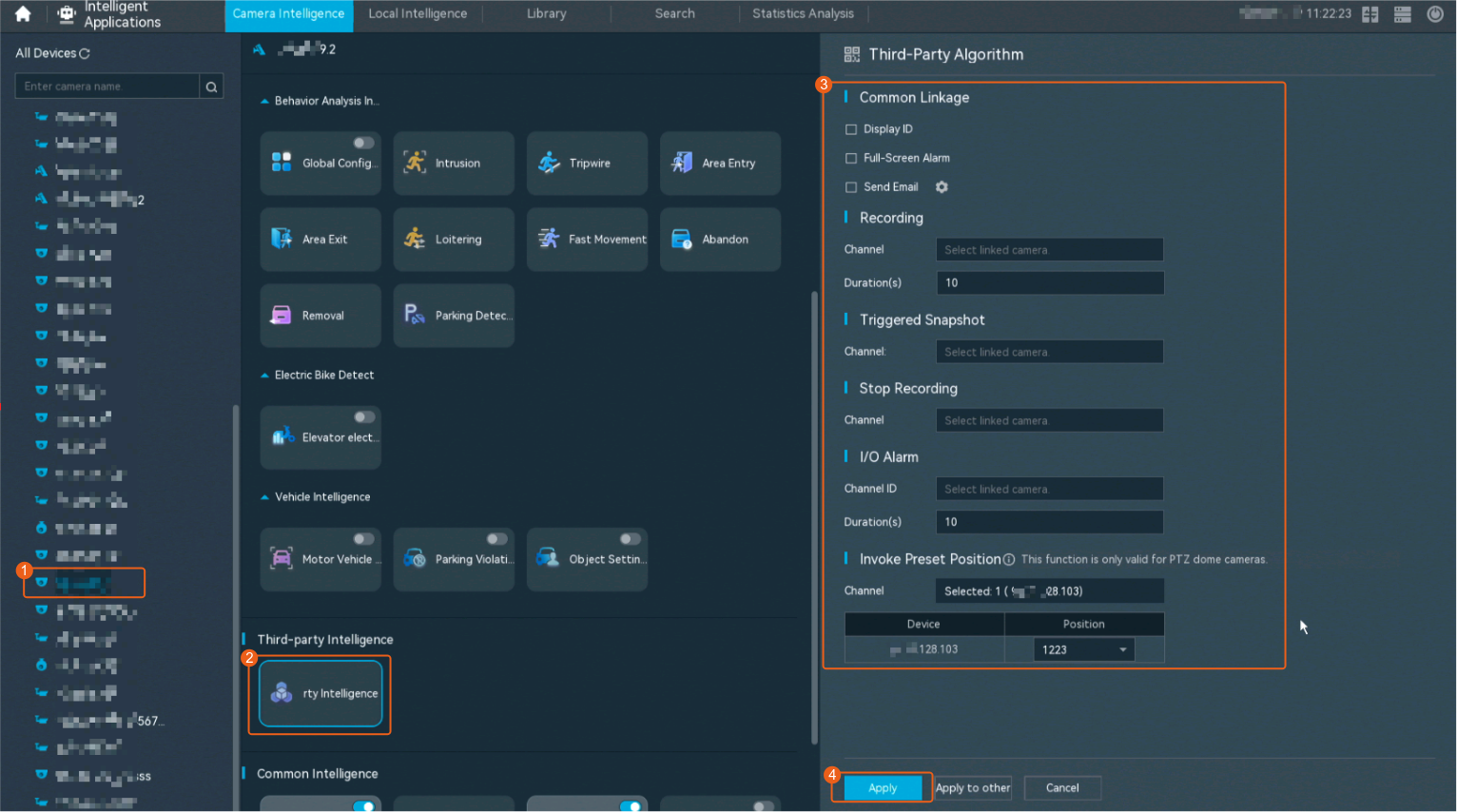
- Configure a linkage policy for a third-party algorithm, as shown in Figure 4-305.
Table 4-274 describes the key parameters.
Table 4-274 Parameter descriptionType
Parameter
Description
Common Linkage
Full-Screen Alarm
Indicates whether to display alarms in full screen mode.
After this function is enabled, if a camera triggers an alarm and the live video viewing page is displayed on the LDU, the live video of the camera is played in full screen mode for 5s.
CAUTION:If another alarm is generated when live video is played in full screen mode, this function is not triggered.
Display ID
Indicates whether to display the status icon of the camera that triggers an alarm on the live video viewing page. This function is used to notify users of an alarm generated by the current camera.
Send Email
Indicates whether to send email notifications. After this function is enabled, the system sends an email to the configured email recipient when a service alarm is generated.
Email Settings
You can click Email Settings to customize the alarm email recipient and email body.
The email address for sending service alarms needs to be customized on the OMU portal.
For details about how to set the email address for sending service alarms, see How Do I Configure Connection to the SMTP Server?.
Recording
Channel
Camera to be linked to record video when an alarm is triggered. You can set this parameter based on the site requirements.
When a camera triggers an alarm, the selected camera starts to record video.
Duration(s)
Customized recording duration. The value ranges from 5 to 3600, in seconds. You are advised to set this parameter to a value greater than or equal to 60 (default).
Triggered Snapshot
Channel
Camera to be linked to take snapshots when an alarm is triggered. You can set this parameter based on the site requirements.
When a camera triggers an alarm, the selected camera starts to take snapshots.
Stop Recording
Channel
Camera to be linked to stop video recording when an alarm is triggered. You can set this parameter based on the site requirements.
When a camera triggers an alarm, the selected camera stops recording.
I/O Alarm
Channel ID
ID of the channel for I/O alarm linkage. You can set this parameter based on the site requirements.
Duration(s)
Customized alarm linkage duration.
The value ranges from 1 to 3600, in seconds.
NOTE:If the customized alarm linkage duration is different from the I/O alarm output duration configured in How Do I Connect Cables and Configure Alarm Input and Output Ports?, the shorter alarm duration is used.
For example, if the I/O alarm output duration is set to 20s and the alarm linkage duration is set to 30s, the actual alarm output duration is 20s.
Invoke Preset Position
Channel
Camera to be linked. When a service alarm is generated, the linked camera stops at the preset position.
Before enabling preset position linkage, ensure that a preset position has been configured for the camera to be linked. For details about how to configure a preset position, see Feature Configuration.
Device
Name of the camera that is linked to a preset position.
Position
Preset position linked to the camera.
Feature Verification
Procedure
- Log in to the LDU as the admin user. ( Logging In to the LDU)
- View alarms.
- Viewing real-time alarms
- Right-click on the desktop and choose Live > Alarm List.
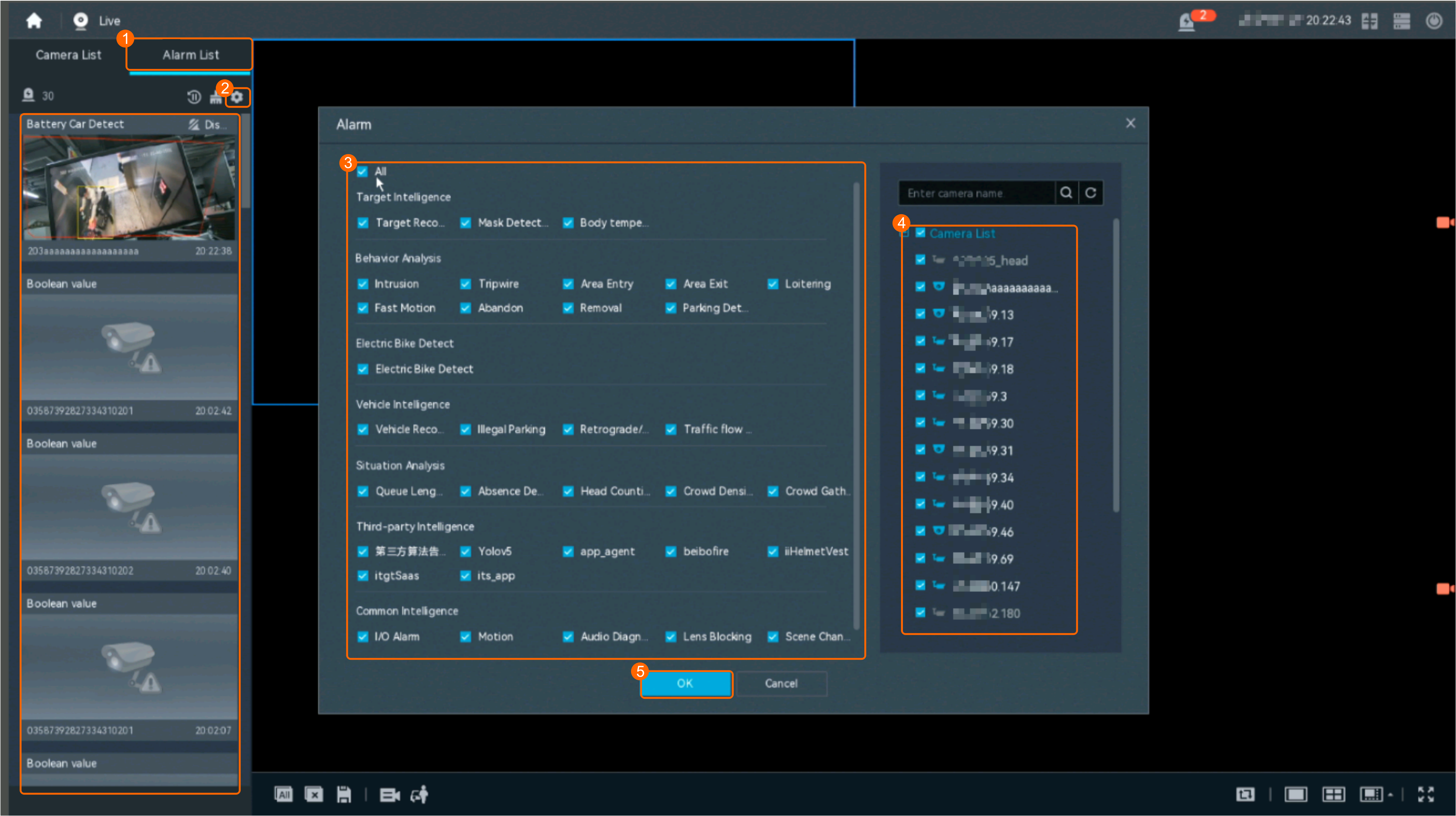
- Click
 and select the type of alarms to be viewed, as shown in Figure 4-306.
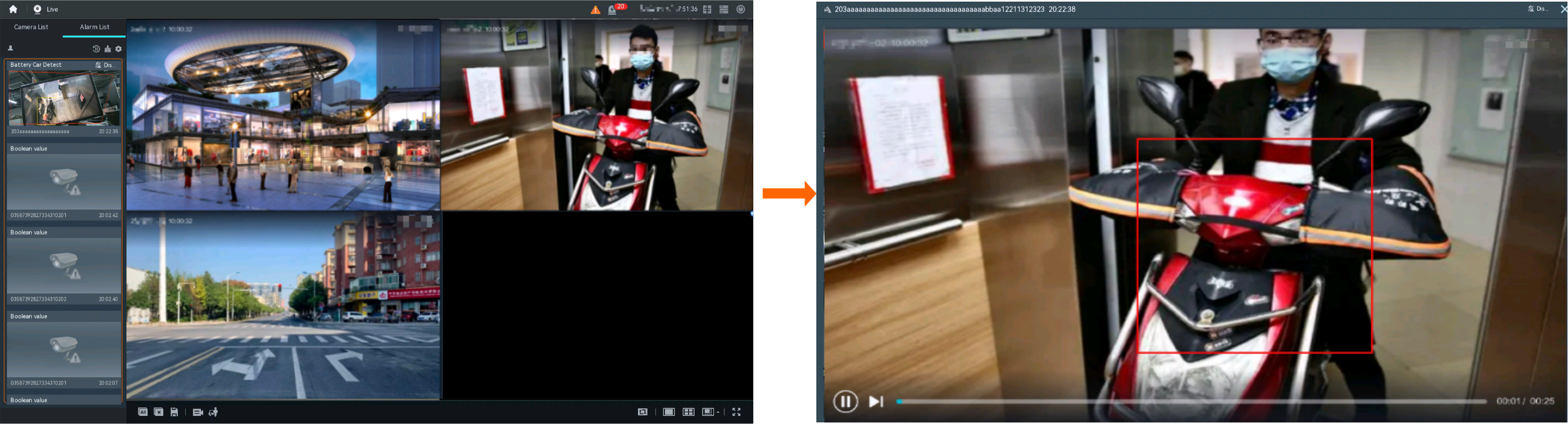
- Click an alarm card in the alarm list to view the alarm in full screen mode, as shown in Figure 4-307.

- By default, the alarm-triggered video is 10s long (5s before and 5s after the alarm time).
- If you click
 , the alarm list on the left stops refreshing the latest alarms. If you click
  again, the system refreshes all new alarms generated after the alarm refresh stops.
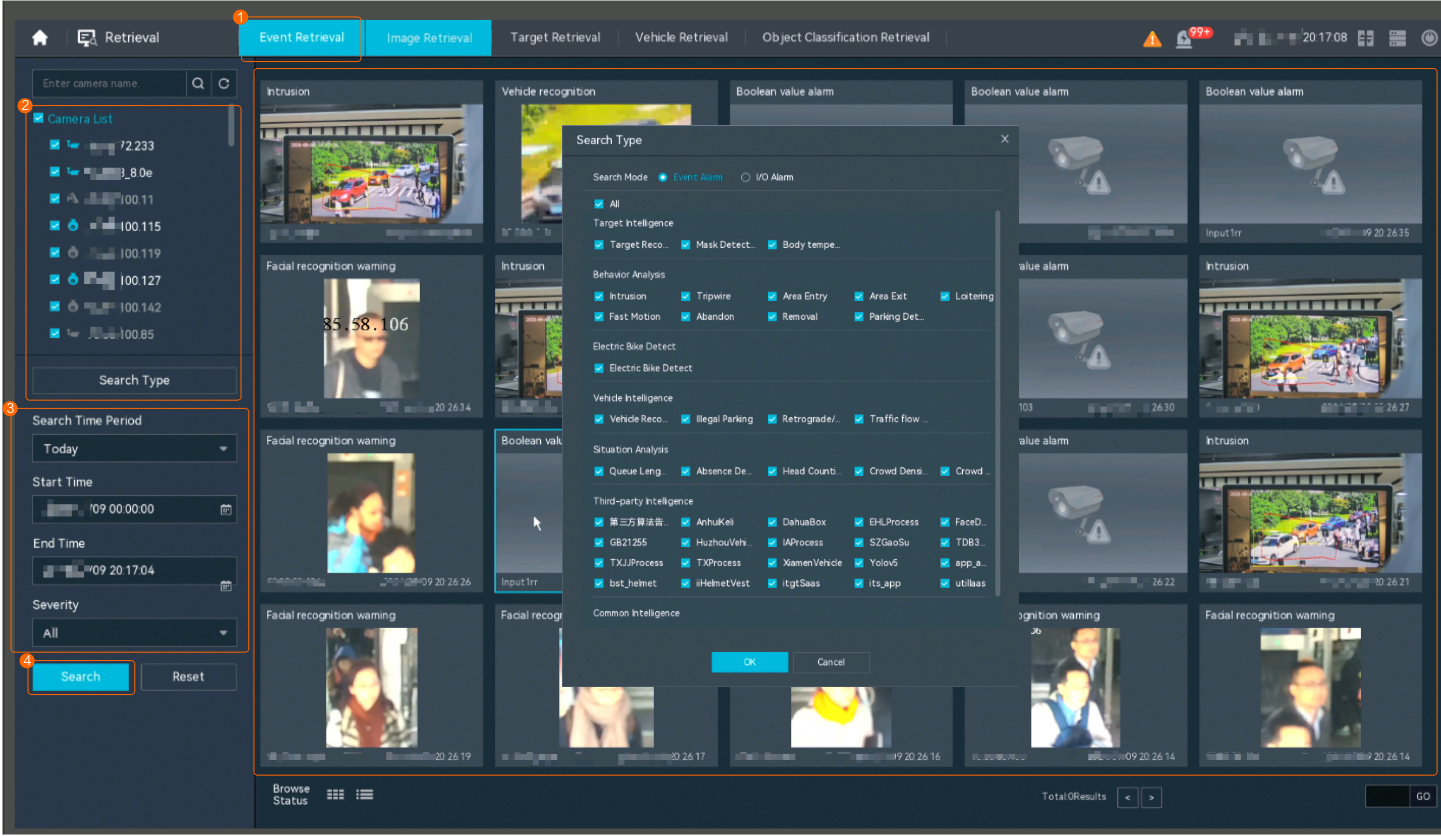
- Viewing historical alarms
- Right-click on the desktop and choose Retrieval.
- Choose Event Retrieval.
- View alarms, as shown in Figure 4-308.
You can click the Browsing Status icon to switch the alarm browsing mode. Alarms in the alarm center can be browsed in card or list mode.
- Viewing real-time alarms
Troubleshooting
Symptom
During historical alarm query, a third-party algorithm reports two alarms. One alarm carries snapshots, and the other alarm does not carry snapshots.
Possible Causes
A third-party algorithm reports alarm information through both the SDK and TLV channels.
- The alarm information reported by the SDK channel does not carry snapshots.
- The alarm information reported by the TLV channel carries snapshots.
Procedure
Disable the alarm reporting function of the SDK channel.
- Log in to the camera web system.
- Choose Service > Alarm Service > Alarm Input.
- Select a third-party algorithm. Here, the falling object detection algorithm is used as an example.
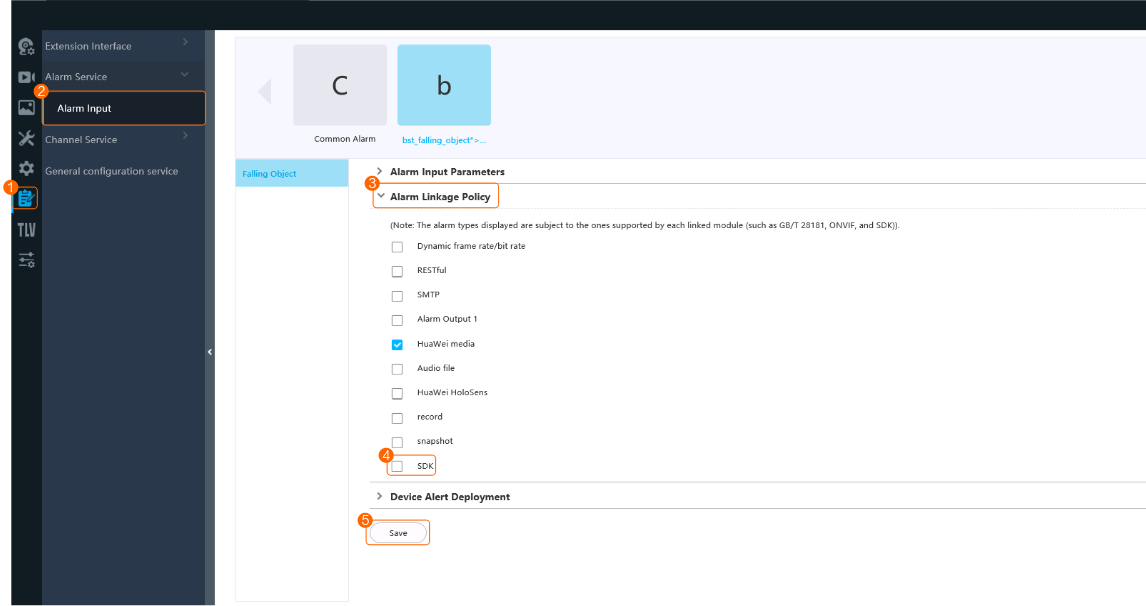
- Deselect SDK, as shown in Figure 4-309.